

Dreamweaver remove line breaks, How to Remove All at Once
Dreamweaver remove line breaks, How to Remove All at Once
When organizing code, there are often times when you want to remove unnecessary line breaks all at once. In Dreamweaver, you can quickly clean them up using the Find and Replace feature. In this post, we’ll go over how to remove line breaks in Dreamweaver for different situations.
Reasons why removing line breaks in Dreamweaver is necessary
When organizing code, situations like the following often come up:
- When you need to compress the entire code into a single line
- When you want to remove unnecessary line breaks
- When you want to clean up line breaks only in a specific section
In these cases, using Dreamweaver’s line break removal feature allows you to tidy everything up in just a few seconds.
1. How to Remove All Line Breaks (Enter) at Once in Dreamweaver
This is the most commonly used basic method.
It’s useful when you want to compress or tidy your code into a single line.
1. Press Ctrl + H → Open the Find and Replace window
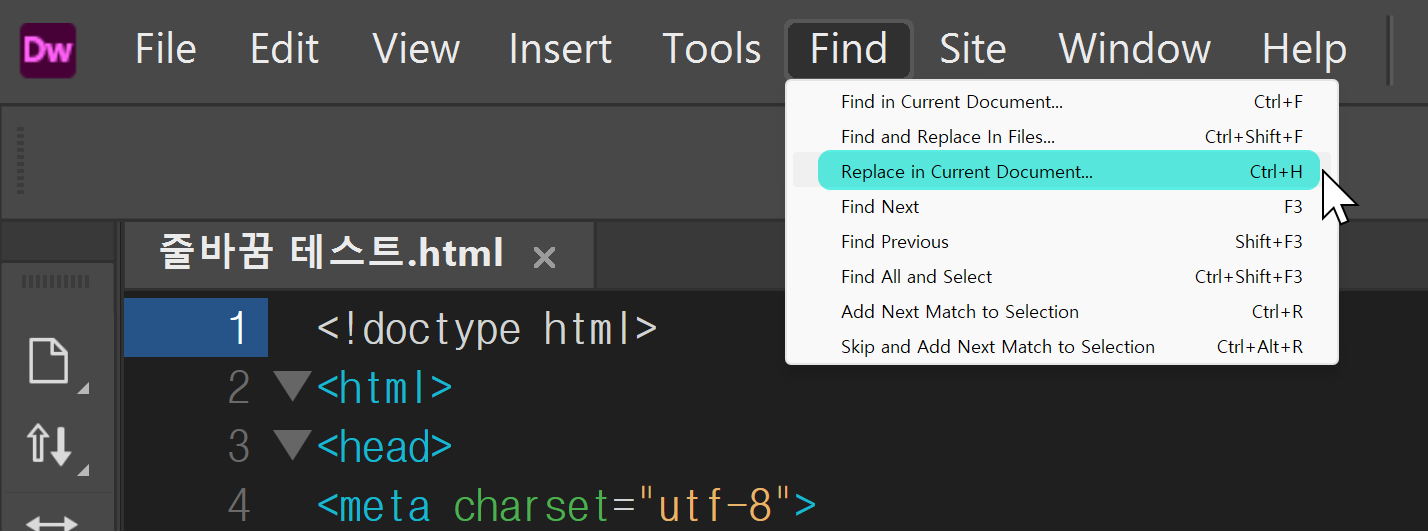
Click Find > Replace in Current Document, or press the shortcut Ctrl + H to open the Find and Replace window.
2. Check ‘Use Regular Expressions’ in the options
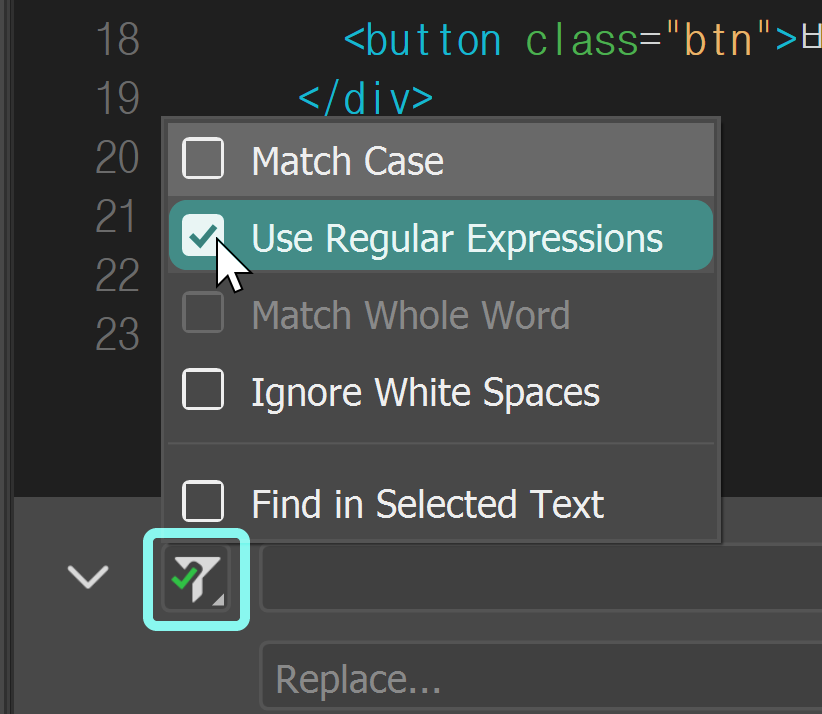
Click the filter-shaped icon in the Find and Replace window, then check ‘Use Regular Expressions’ in the pop-up that appears.
3. Enter in the ‘Find…’ field (\r?\n)
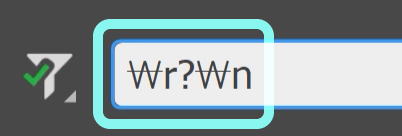
Enter the line break regular expression \r?\n in the ‘Find….’ field.
4. Click ‘Replace All’
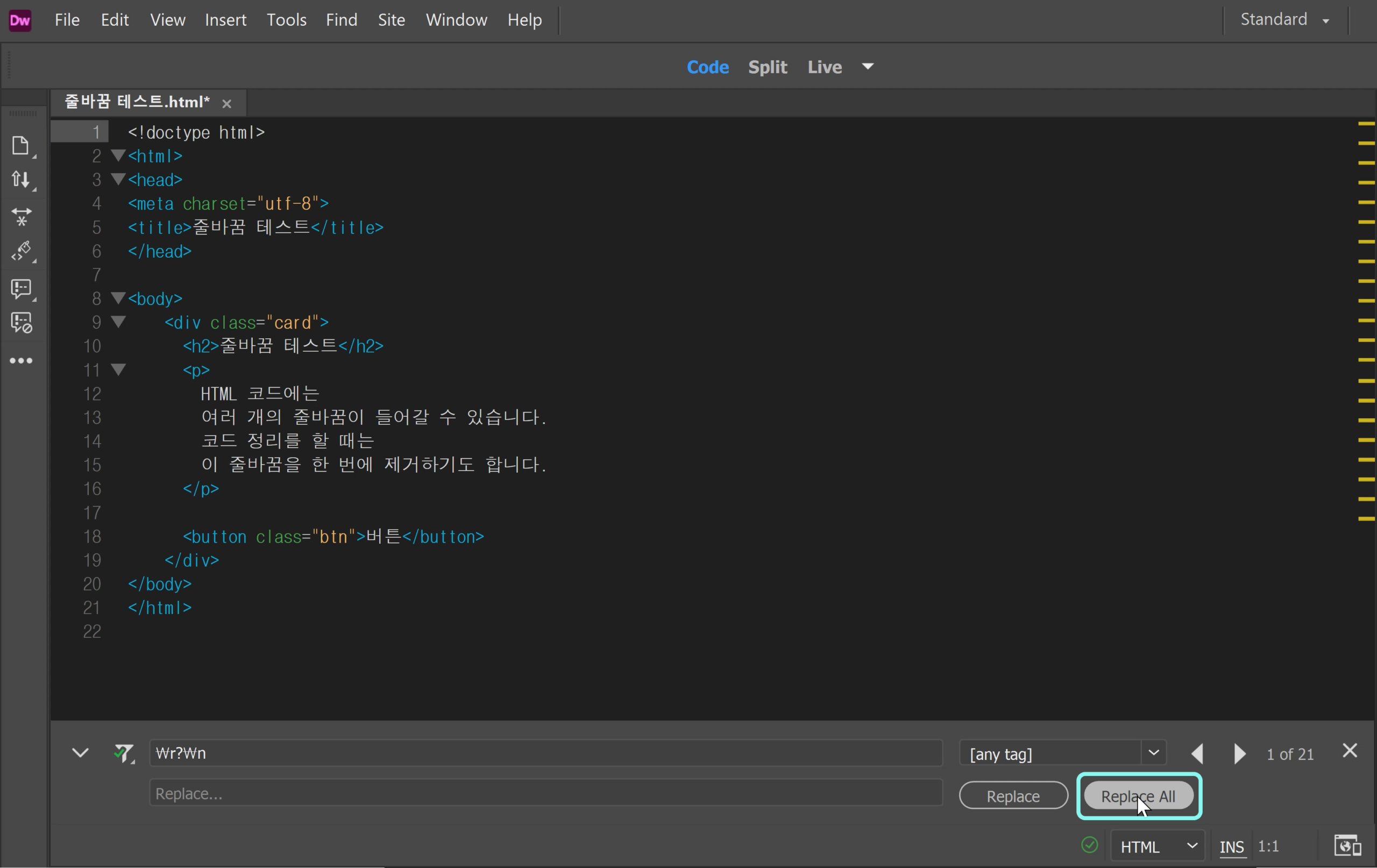
Leave the ‘Replace’ field empty, then click the ‘Replace All’ button.
5. Result

Ta-da — all line breaks (enters) are removed, and the code is merged into a single line.
2. Removing Line Breaks Only in a Specific Section in Dreamweaver
This time, let’s look at how to clean up line breaks only within a selected area instead of the entire document.
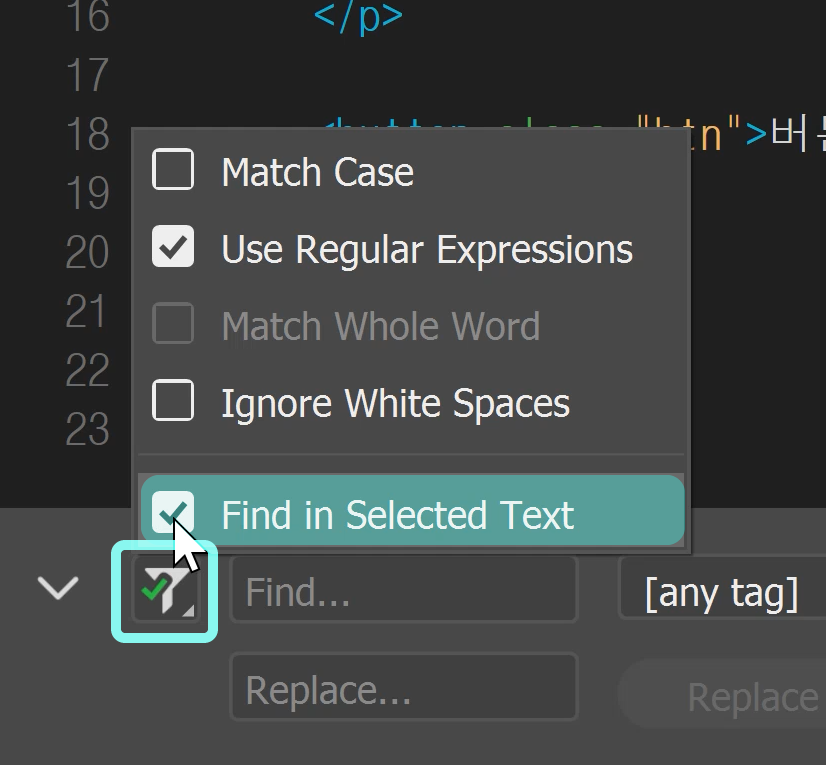
Click ‘Find > Replace in Current Document’ or press the shortcut ‘Ctrl+H’ to open the Find and Replace window. Then click the filter icon in the Find and Replace window and check ‘Find in Selected Text’ in the pop-up that appears.
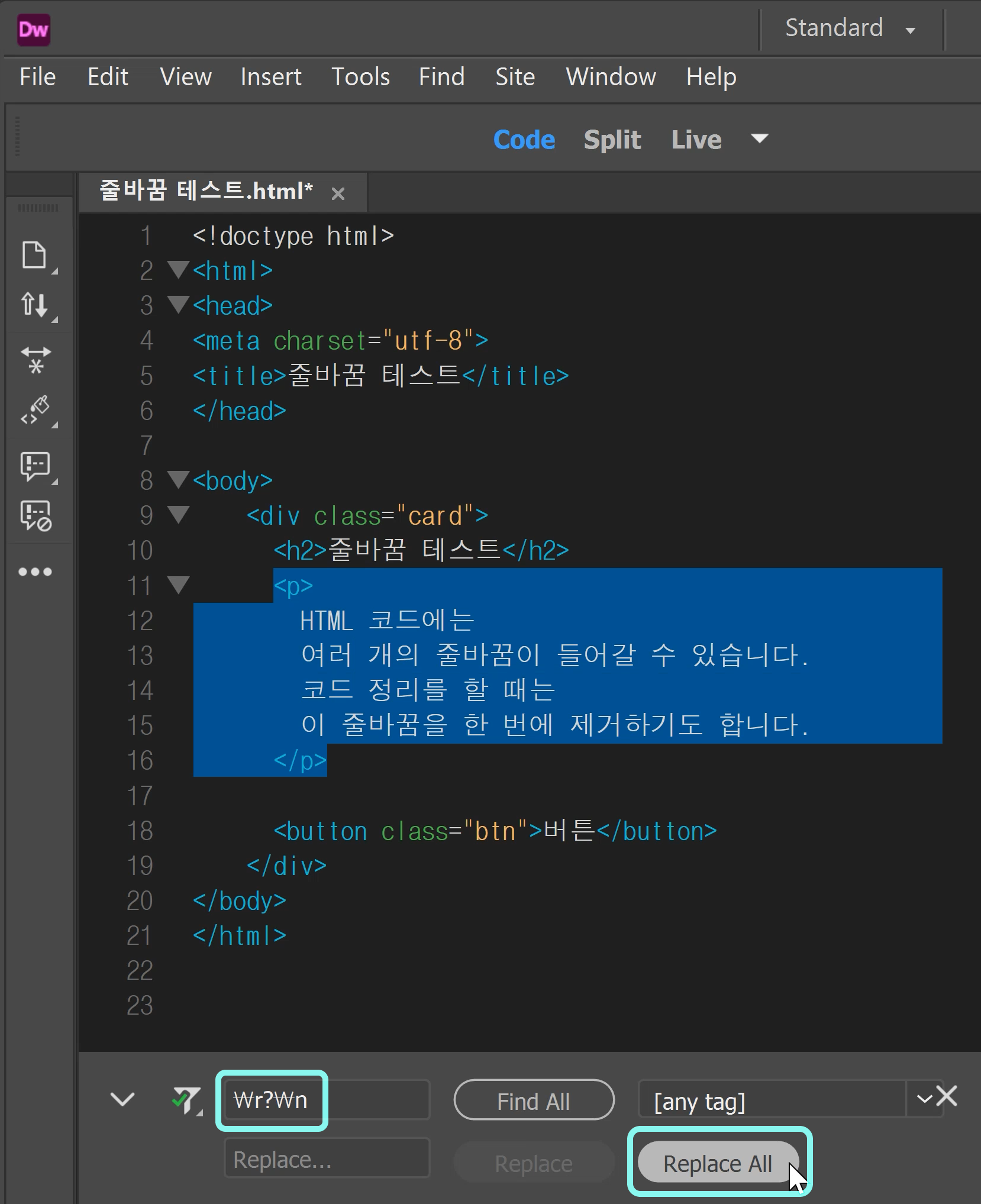
Drag to select the area you want to modify, then enter the line break regular expression (\r?\n) in ‘Find…’. Leave ‘Replace…’ empty and click ‘Replace All’.
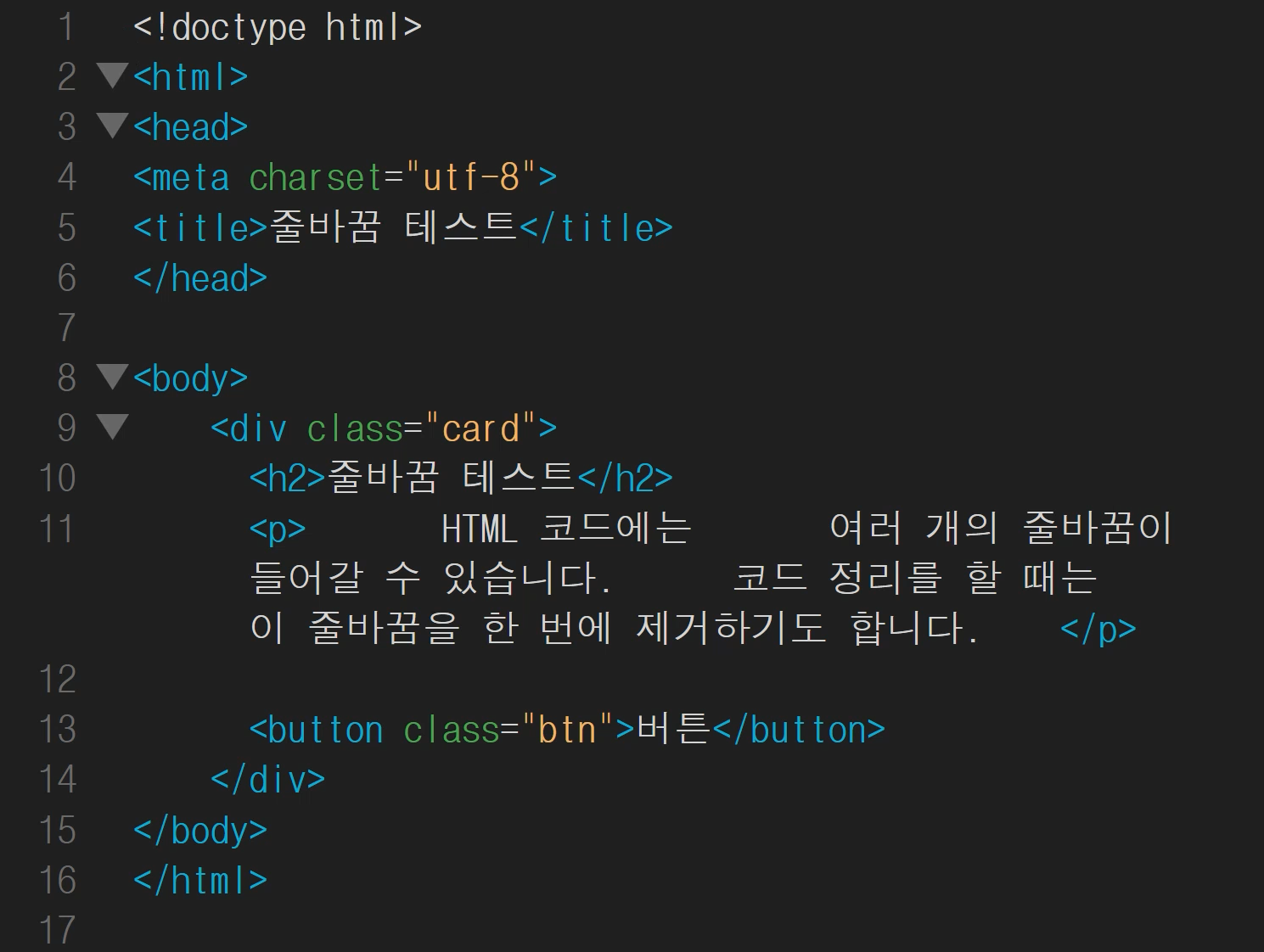
Ta-da — this time, the line breaks in the selected section have been removed.
Learn more about line break regular expressions
Each operating system handles line breaks differently.
Historically, a line break character is made up of a combination of two control characters.
- 1
\r (Carriage Return, CR): moves the cursor to the beginning of the line
- 2
\n (Line Feed, LF): moves the cursor to the next line
Line break regular expression patterns by operating system
| Operating System | Method | Notation | Description |
|---|---|---|---|
| Windows | CRLF | \r\n | Like a typewriter, it moves to the next line (\n) and then returns to the beginning of the line (\r). |
| Unix / Linux / macOS | LF | \n | This is the modern standard, and a single line break does both roles. |
| Operating System | Method | Notation | Description |
|---|---|---|---|
| Windows | CRLF | rn | Like a typewriter, it moves to the next line (n) and then returns to the beginning of the line (r). |
| Unix / Linux / macOS | LF | n | This is the modern standard, and a single line break does both roles. |
\r?\n usable on both Windows and Mac
To make it work on both Windows and Mac, you can use \r?\n.
\r?\n has the following meaning:
- 1
\r?: the ‘\r’ character may appear zero or one time
- 2\n: ‘\n’ must come after it
Therefore, \r?\n can match both Windows rn and Mac/Linux n at once.